
How to Use Pic-Time and Navigate Your Gallery
If you’ve hit this page, it means you—or someone you know—hired me to capture their special day. Now, here’s how to access the photo gallery!
Here’s your TL;DR:
Pic-Time is an online gallery to view, download, and buy prints.
Watermarks only appear in the online galley
Downloaded or printed photos will have no watermark
Click to the gallery link I sent
If asked for a password → click “Forgot Password” and set one
Scroll to see all photos
You can download one photo at a time OR the full gallery
Pro Tip: Download all your photos and save those digitally and physically (for safe keeping)
To Buy Prints
Click a photo → then click 🛒
Or shop from the main menu
Printing tips: Always use High-Res files
Table of Contents
What is Pic-Time | How to Use Pic-Time | How & Why You Should Download Your Gallery | How to Purchase Prints
What is Pic-Time
Pic-Time is a gallery hosting service I used to deliver your photogs. This online galley lets you view and download your photos—as well as purchase prints.
While it’s mostly user-friendly, it can be unfamiliar too. Here’s everything you need to know in this handy guide.
Tip: Please note the photos have a watermark on them. But once you download your photos, there will be no watermark.
How to Use Pic-Time
Open your gallery: You can do this via the link I provided.
When you open the gallery, it might prompt you for a password.
If this happens, click "Forgot Password" and follow the steps to set up an account.
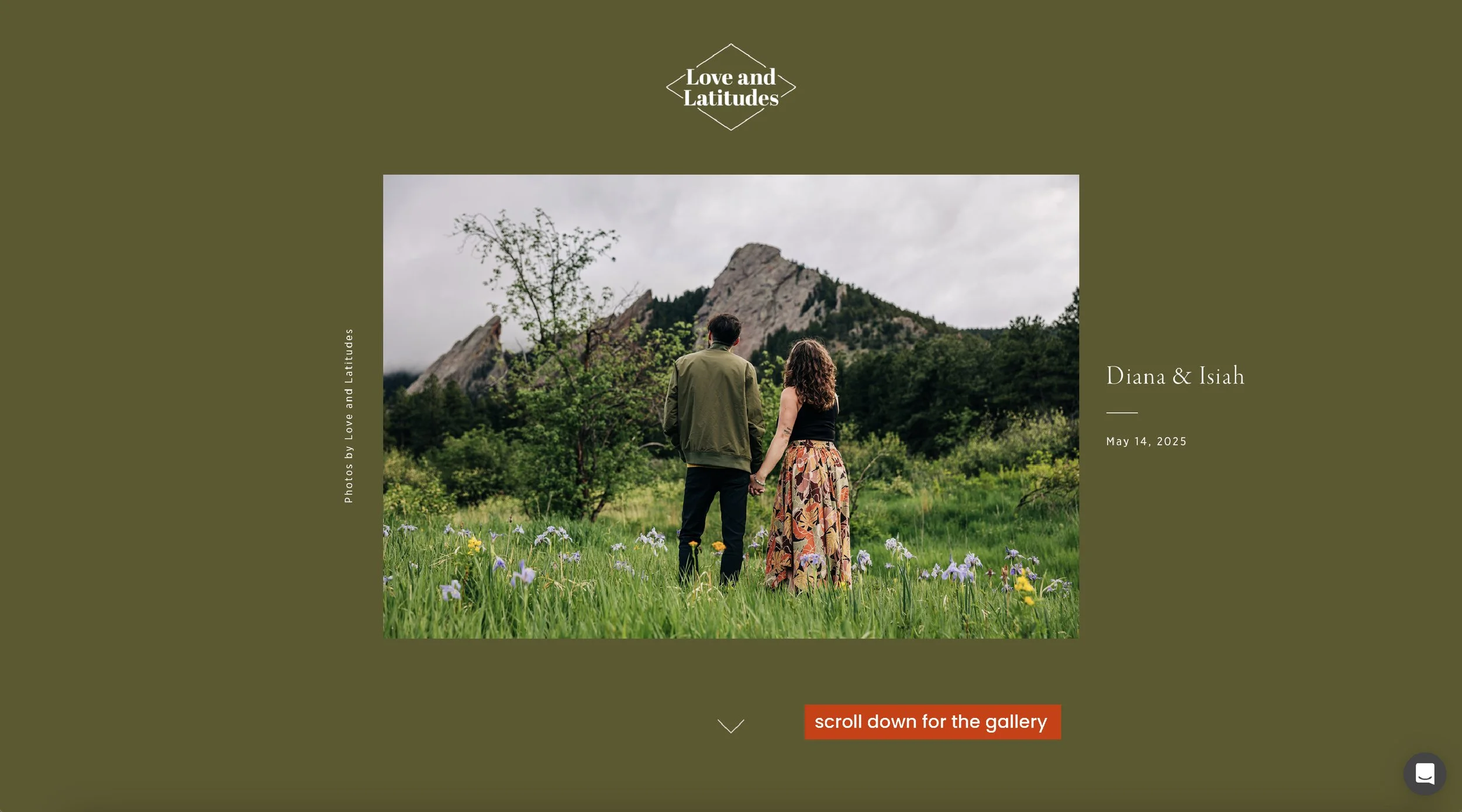
When you enter the gallery, you’ll scroll down to see the gallery and images associated.
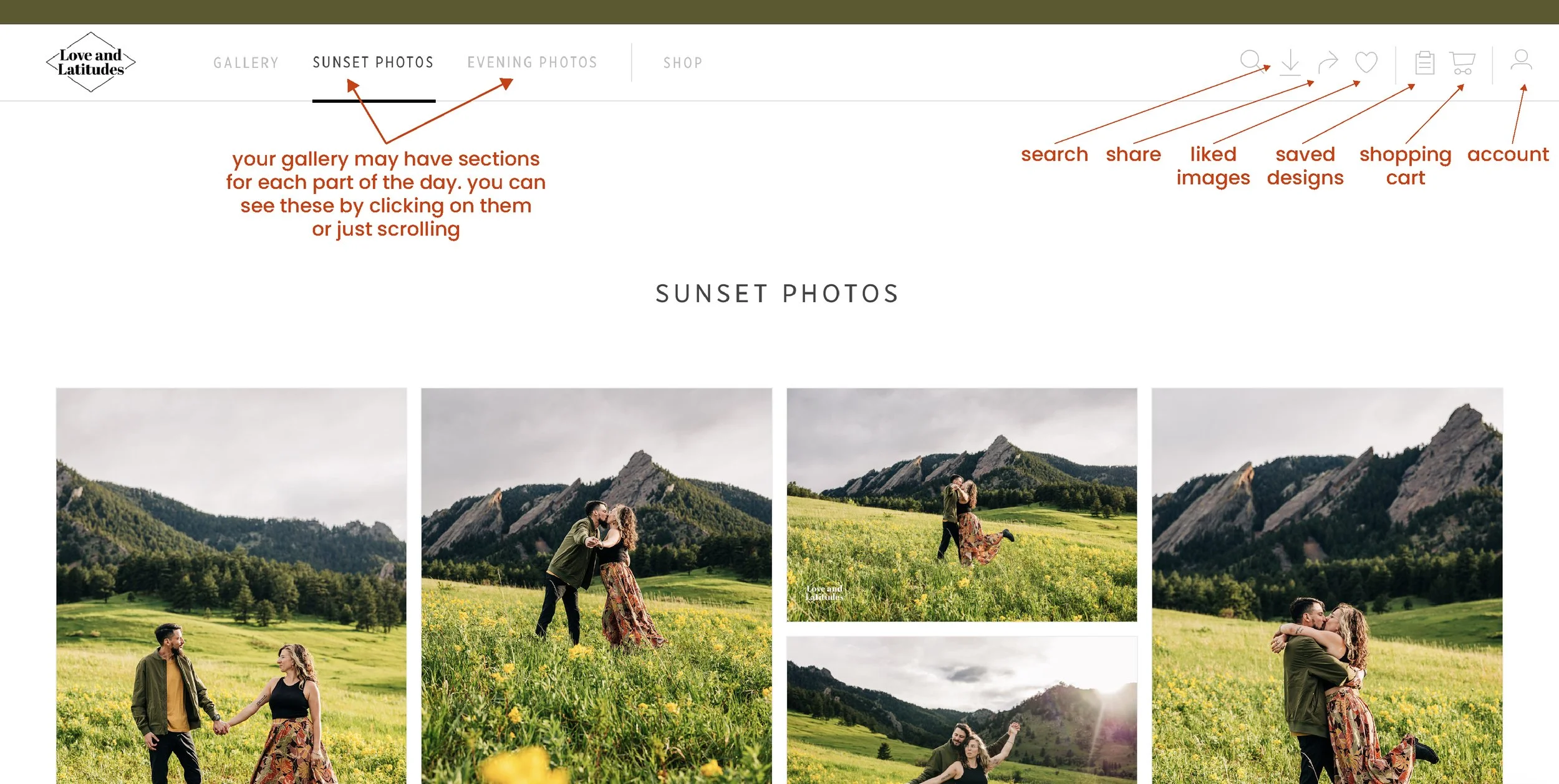
Your gallery may have sections listed at the top-left corner. These are just different events from the day.
You can see each section by clicking on them or just scrolling.
At the top-right corner, you’ll find these buttons in order:
Magnifying Glass/Search Icon: Search the gallery based on faces.
Arrow Icon: Share the whole gallery, or click on selected photos which will be added here to share.
Heart Icon: Your liked images will go here.
Clip Board Icon: Any designs you’ve created will go here, such as multi-photo prints or wedding albums.
Shopping Cart Icon: This is where items you order will go and where you will pay and purchase.
Account Icon: Galleries, past orders, settings, and more.
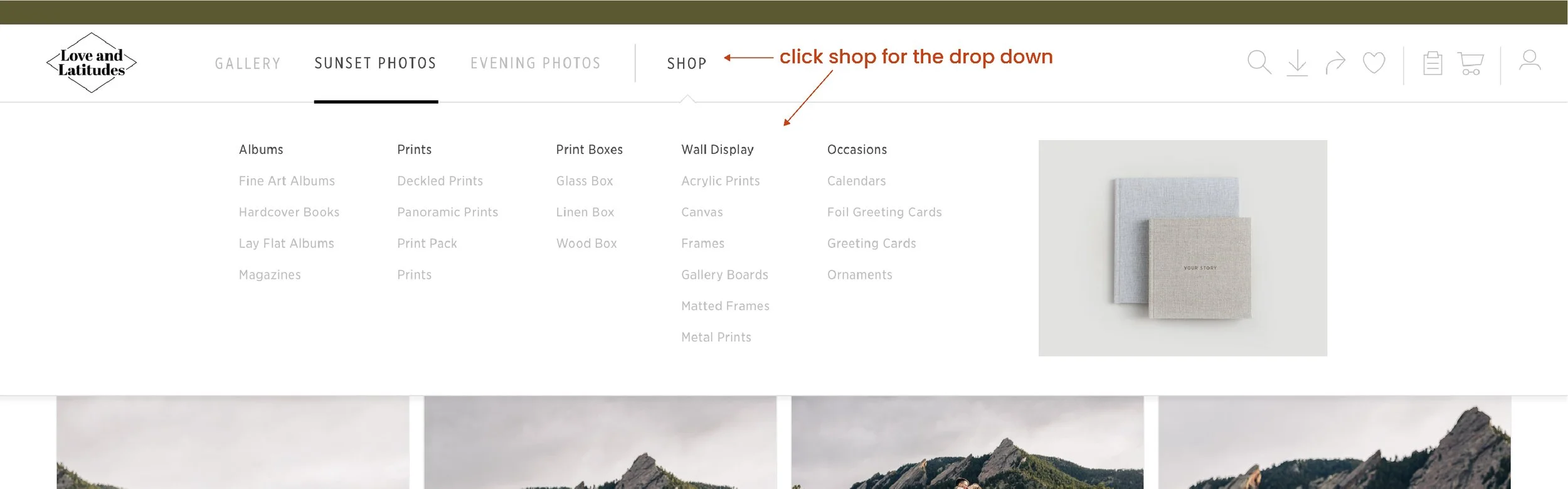
Shop can also be accessed from the top menu bar. Here, you can see the options for items you can purchase.
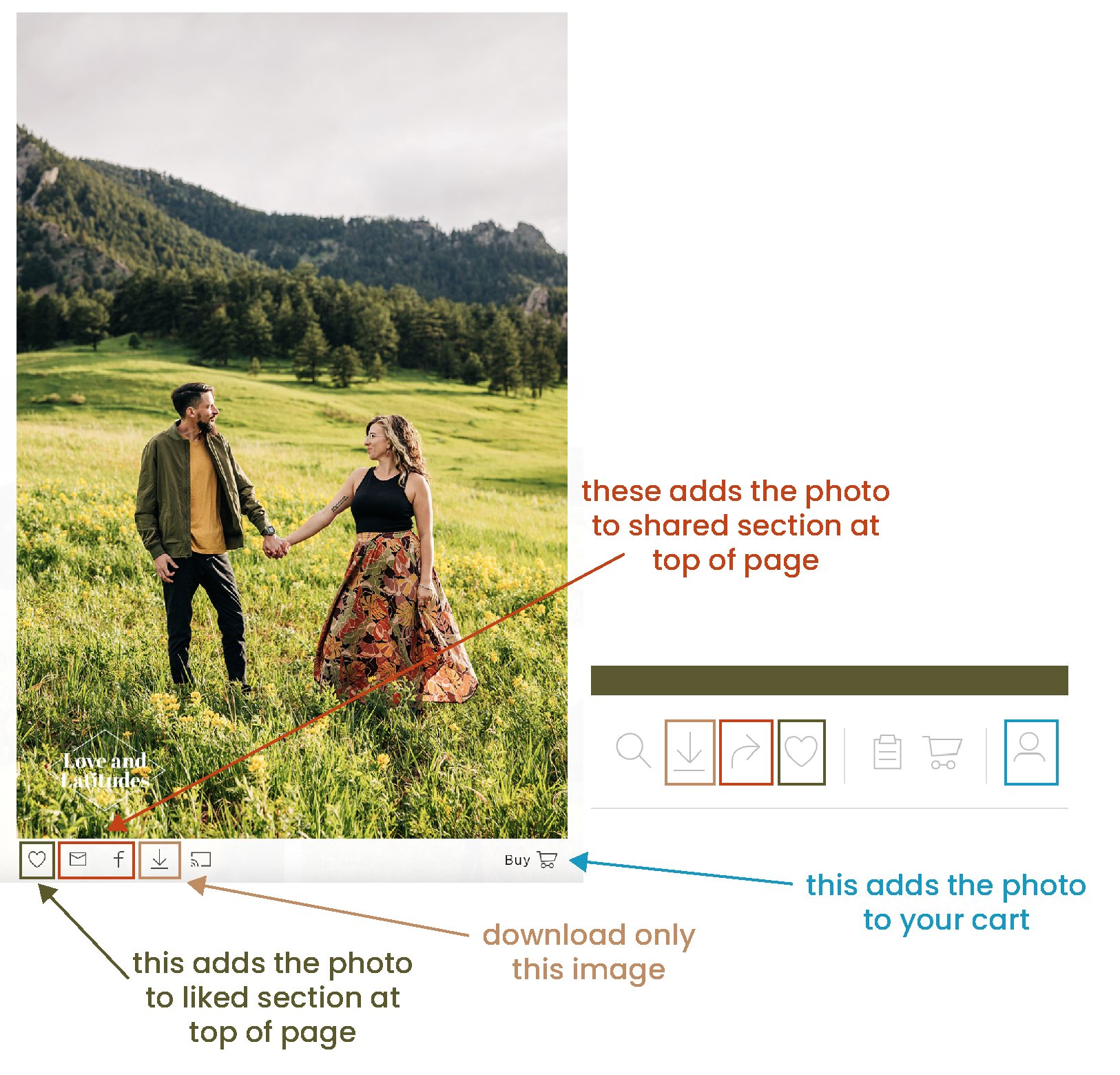
If you click on one photo, you’ll see a watermark and more icons on the images. The watermark is only present in the gallery! Once the photo is downloaded or a print purchased, the watermark will not be visible.
The icons here are similar to the ones above:
Heart Icon: If you like this photo, it will show up in your likes section.
Envelope & Facebook Icon: Click this to add the photos to the share section.
Downwards Arrow Icon: Download only this image.
Shopping Cart Icon: This will give you the option to purchase a print or item with this photo.
How & Why You Should Download Your Gallery
Nothing is guaranteed. Online files can be lost, servers can go down, computers can be destroyed, even printed photos are at risk. So the best way to protect your photos is to download and save them in multiple locations!
Plenty of couples use these online galleries as storage. I will likely keep many of these galleries up for years. However, you never know what could happen, so you should absolutely download your FULL GALLERY and save it in more than one location.
You have two options:
You can download 1 photo at a time.
Or you can download a full galley.
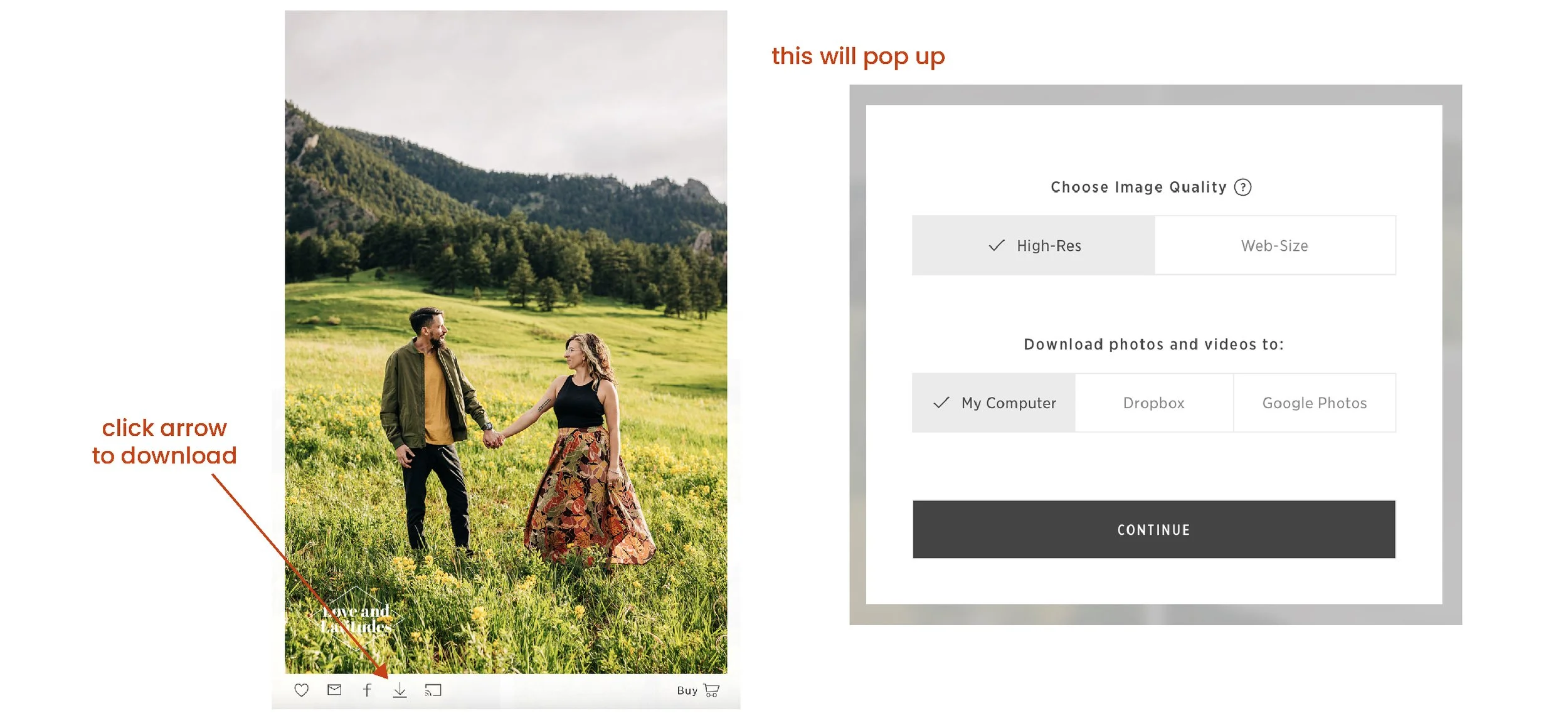
Download One Image at a Time
You can download one image at a time by clicking on the image, then clicking the downward arrow. A pop-up will show, where you can choose to download high- or web-resolution photos and where to download them to. More on that soon.
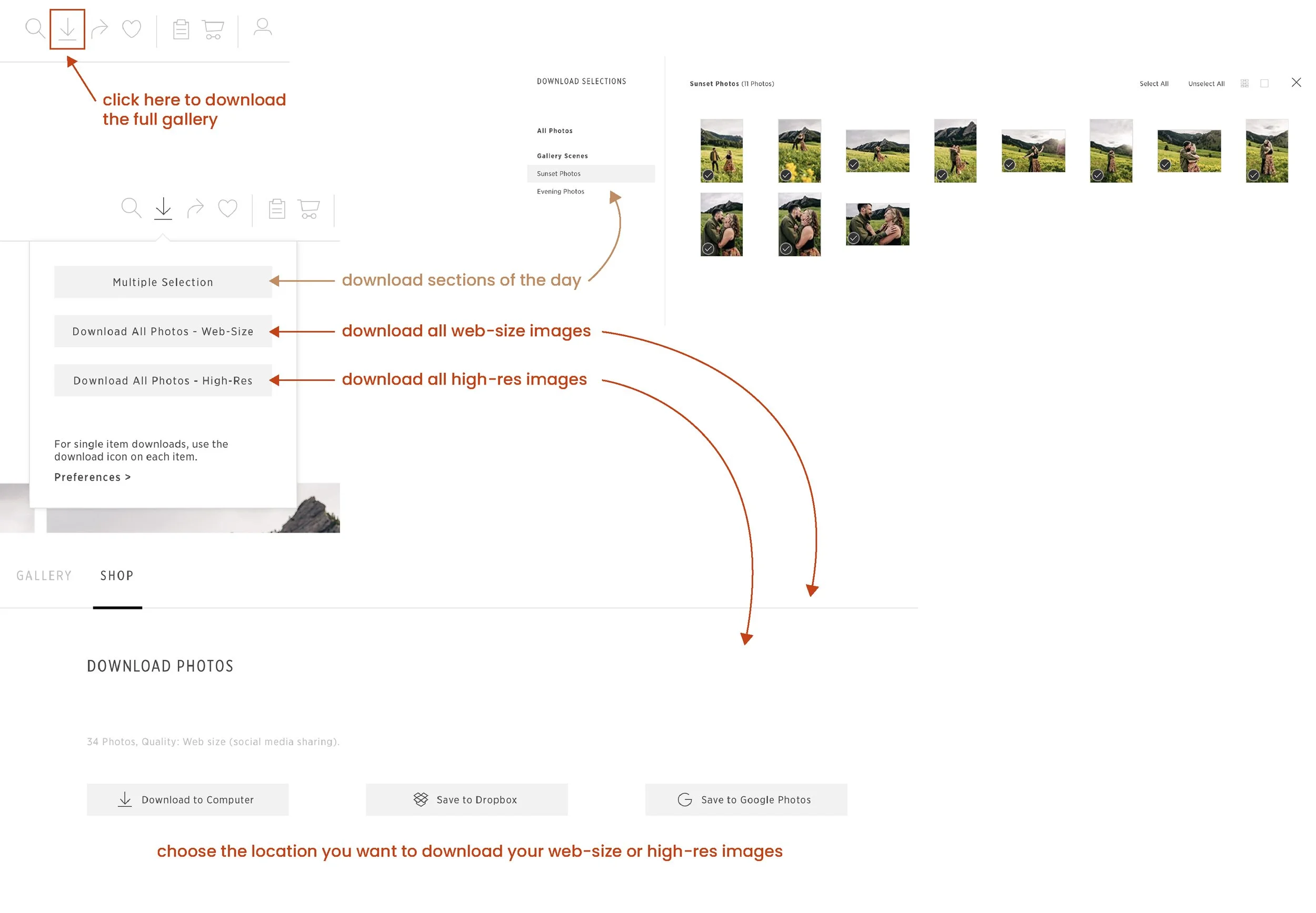
Download the Full Gallery
To download the full gallery, go to the download icon at the top right corner of the page. You’ll have the option to choose Multiple Selection, Download All Photos - Web-Size, and Download All Photos - High-Res.
Here’s a breakdown of what that means:
Multiple Selection: You can choose one or a couple of sections to download.
Download All Photos - Web-Size: This will download the full web-size gallery. These are best used for phones, social media, etc. You should not print these.
Download All Photos - High-Res: This will download the full high-resolution gallery. It will take some time, but I recommend doing this so you have the best quality images saved for later. These are also the images you’ll want to use for printing.
Once you download the images, save these to multiple locations. Think about it this way—if you only save these to your computer, and your computer breaks, they’ll be gone.
I recommend saving these to one physical location and one online location, at least.
For physical, your computer or an external harddrive will work.
For an online location, try online or cloud services like Google Drive or Dropbox.
How to Purchase Prints
Through your Pic-Time gallery, you have the options to purchase prints. These are your photos, so you are welcome to print them wherever you want. However, this section is all about using Pic-Time to purchase prints.
You can purchase prints directly through Pic-Time two ways:
Click on an individual photo to purchase
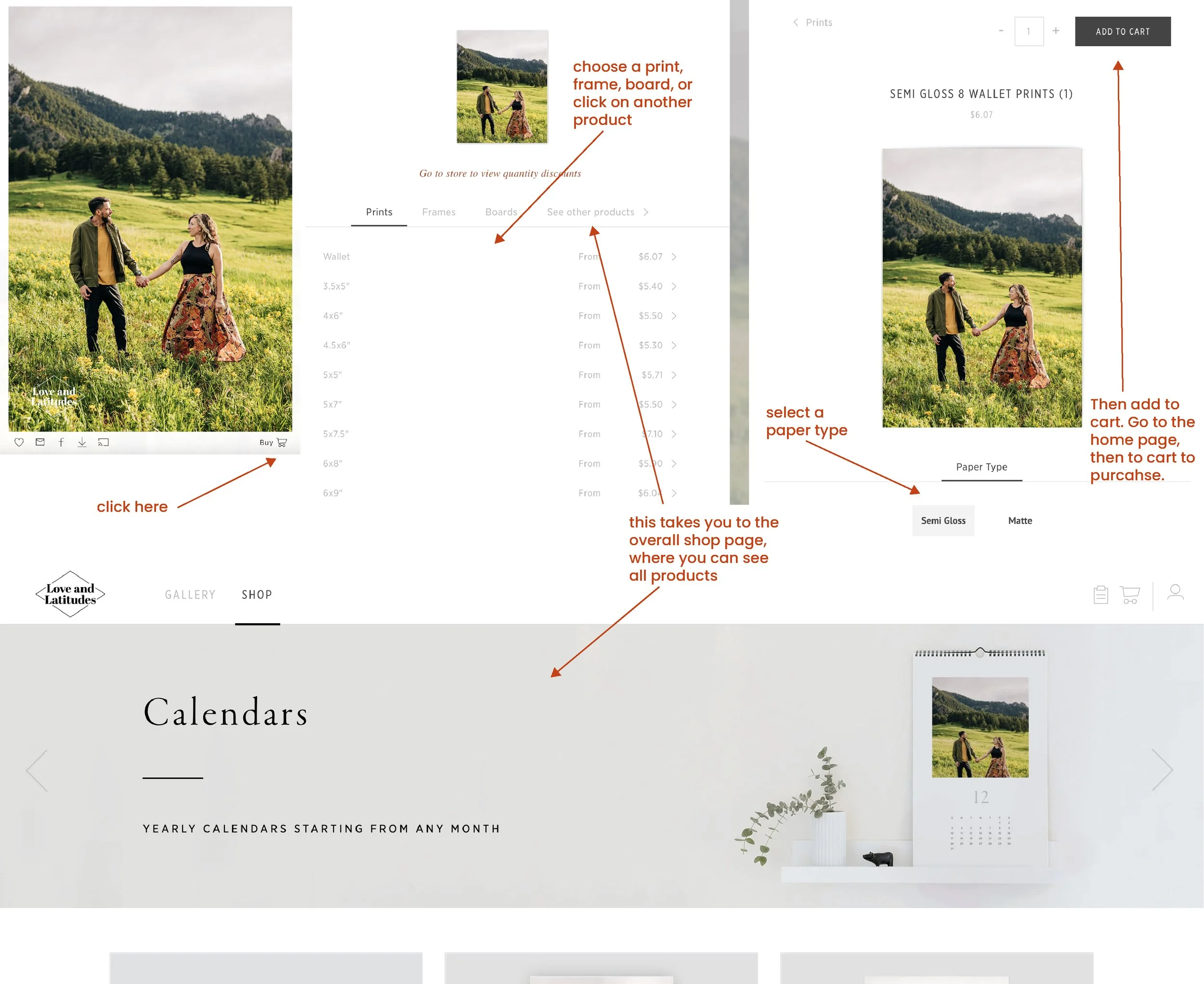
Head to the shop from the main page.
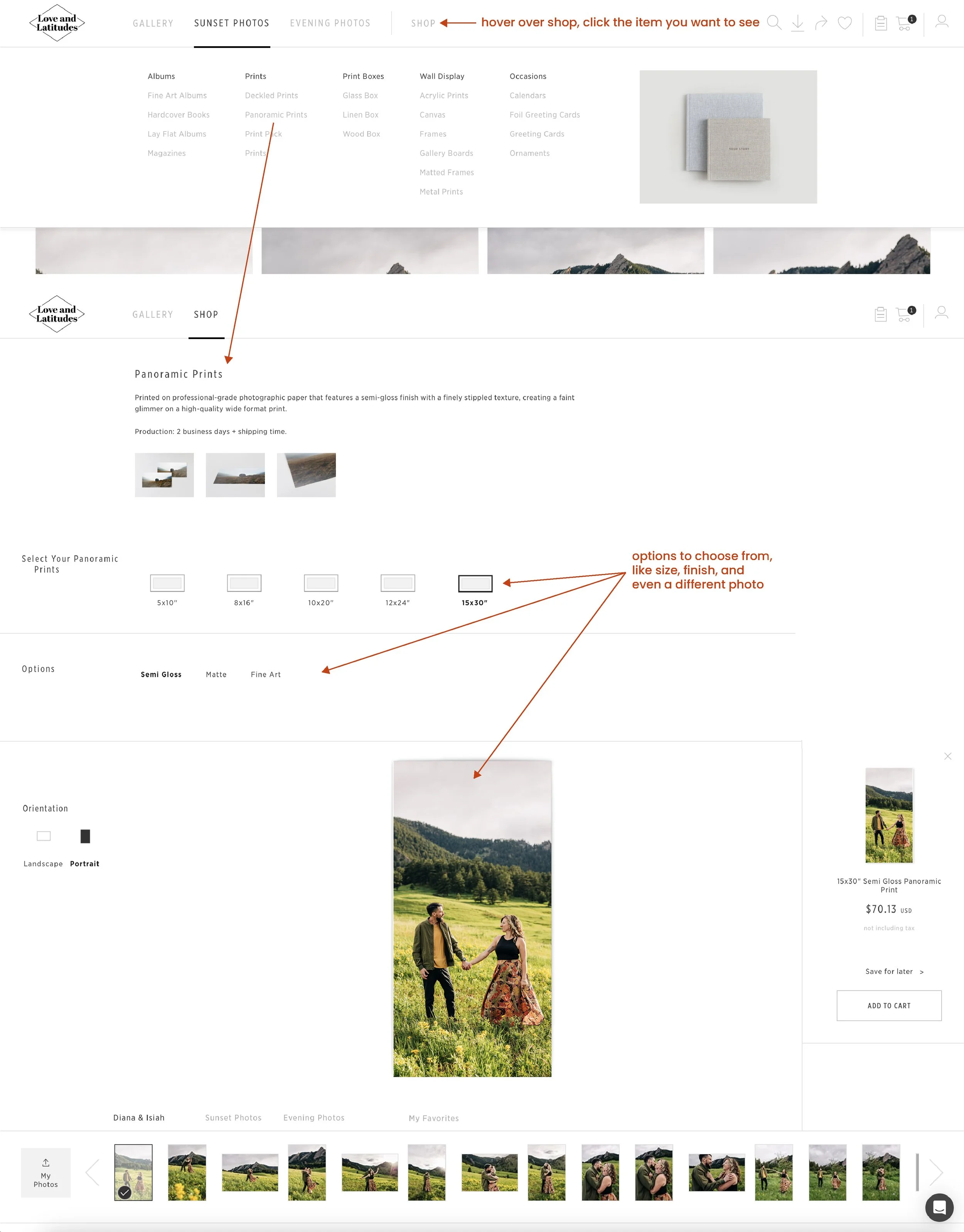
Two important things to note for printing images:
If you are printing elsewhere, download the high-resolution images and use those.
Lowlight images such as starry photos or dusk portraits will not print as well at larger sizes.
Have More Questions?
I want to make sure you get exactly what you need out of your gallery. If you have more questions, or even thoughts or concerns, please reach out at loveandlat@gmail.com.